The fork of the radial menu launcher with multi-ring layouts, submenus and interactive items.
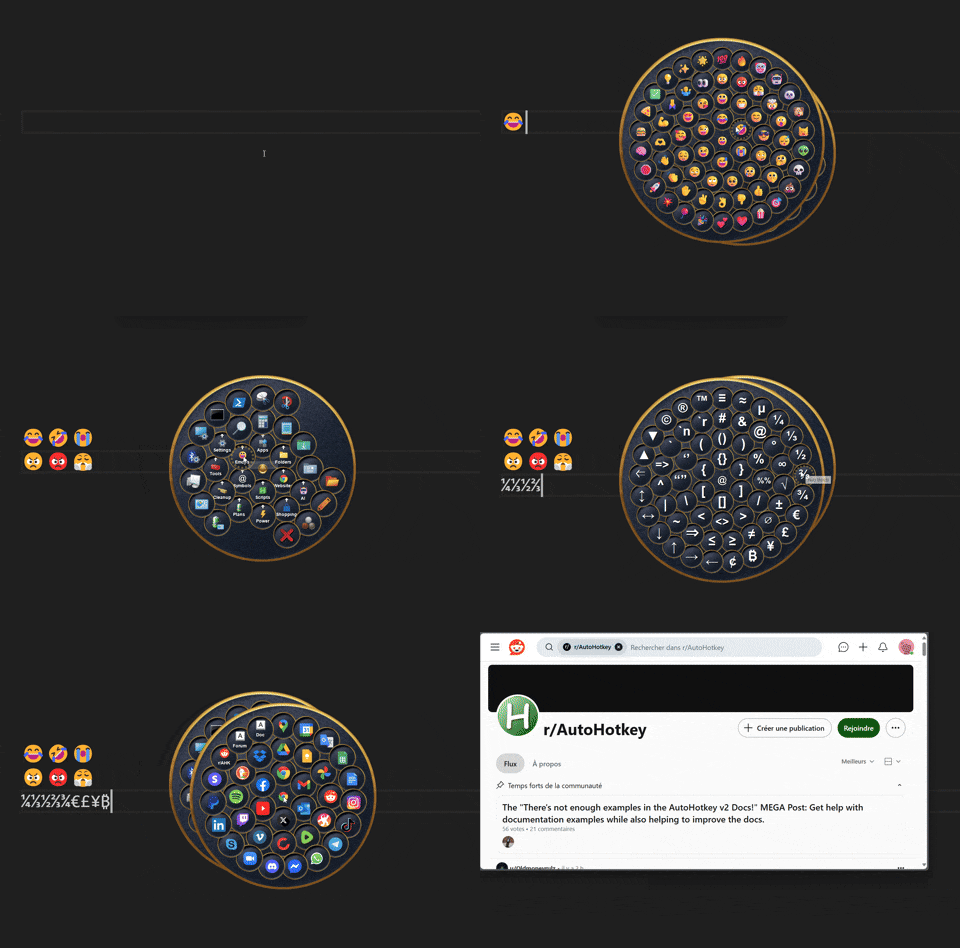
-
Customizable menu options: Configure images, text, tooltips, item size, skins, and more.
-
Multiple sub-menus: Assign various click actions to individual sub-menus: left click for the first sub-menu, right-click for second sub-menu.
-
Minimalistic theme: only solid gray without borders, shadows and neon colors.

-
Multi-Level submenus: requires muscle memory only. No more visual searching. Inspired by Kando mouse gestures.
-
Auto-close on losing focus: if you opened wrong menu, just press
Escor click anywhere to close the menu. -
Change icons: let the menu inform you about any state (currently new one overlaps old one so its suitable only for changing colors). See
settings menu -> battery iconsorsafe mode.
- Find items: if you lost some item in the nested menus, just press
Ctrl+Fand enter it's name. Radify will guide your mouse through the menus.
Radify is not standalone application! It is fast GDIP library that can be included in AutoHotkey scripts, i.e. you need to know how to write on AutoHotkey v2.0+
If you're already familiar with this language - open Radify Menus.ahk and create new menus with the help of documentation below.
To create a new menu you need an array of objects:
Radify.CreateMenu('main', [[
  {
    text: 'Xyplorer',
    click: Dir('C:\Users\ToYu\XYplorer\Data\Scripts'),
    image: 'C:\Users\ToYu\Pictures\icons\PNG\xyplorer file.png'
  },
  {
    text: 'PowerShell',
    click: Dir('C:\Configs and settings\PowerShell'),
    image: 'C:\Users\ToYu\Pictures\icons\PNG\console3.png'
  },
  {
    text: 'AutoHotKey',
    click: Dir('C:\Configs and settings\AutoHotKey'),
    image: 'C:\Users\ToYu\Pictures\icons\Lumicons\Mono\autohotkey.ico'
  }
]])
Each object represents single menu item: the characteristics and behavior. An empty object {} inserts a blank space in the menu, useful for spacing or alignment. You can pass any object with the following properties:
| Property | Type | Description |
|---|---|---|
Image |
string | number | Image displayed on the menu item. See: Supported Image Formats. |
Tooltip |
string | Tooltip text shown on hover. See also: AutoTooltip. |
Text |
string | Text to display on the menu item. |
Click |
function object | string | Action to execute when the item is clicked. |
RightClick |
function object | string | Action to execute when the item is right-clicked. |
CtrlClick |
function object | string | Action to execute when the item is ctrl+clicked. If the CtrlClick action is not defined, Ctrl + Click executes the item’s Click action (if defined), without closing the menu. |
ShiftClick |
function object | string | Action to execute when the item is shift-clicked. |
AltClick |
function object | string | Action to execute when the item is alt-clicked. |
HotkeyClick |
string | Hotkey that triggers the Click action. |
HotkeyRightClick |
string | Hotkey that triggers the RightClick action. |
HotkeyCtrlClick |
string | Hotkey that triggers the CtrlClick action. |
HotkeyShiftClick |
string | Hotkey that triggers the ShiftClick action. |
HotkeyAltClick |
string | Hotkey that triggers the AltClick action. |
HotstringClick |
string | Hotstring that triggers the Click action. |
HotstringRightClick |
string | Hotstring that triggers the RightClick action. |
HotstringCtrlClick |
string | Hotstring that triggers the CtrlClick action. |
HotstringShiftClick |
string | Hotstring that triggers the ShiftClick action. |
HotstringAltClick |
string | Hotstring that triggers the AltClick action. |
Submenu |
array | The submenu structure: an array of one or more inner arrays (rings), each containing item objects. |
SubmenuOptions |
object | Options specific to the submenu. |
ItemBackgroundImage,ItemImageScale,ItemImageYRatio,SubmenuIndicatorImage,SubmenuIndicatorSize,SubmenuIndicatorYRatio,SoundOnSelect,CloseOnItemClick,CloseOnItemRightClick,MirrorClickToRightClickand all text styling settings.Click,RightClick,CtrlClick,ShiftClickandAltClickaccept either a function object or a predefined action.Ctrl + Click: If theCtrlClickaction is not defined,Ctrl + Clickexecutes the item’sClickaction (if defined), without closing the menu.
Proroperties like Click, RightClick, ... accepts function object or callable objects which will be executed on item click.
Some of them are pre-defined for you:
Close: Closes the entire menu tree.CloseMenu: Closes only the current menu.Dir(path): opens specified directory/path.App(path): Runs specified application/link.Cmd(cmd): Executes command line (hidden).
Just pass them to the action:
  {
    text: 'PowerShell',
    click: App('pwsh'),
    rightClick: App('cmd')
  },
  {
    text: 'AutoHotKey',
    click: Dir('C:\Configs and settings\AutoHotKey'),
    shiftClick: Dir(A_ScriptDir)
  },
  {
    text: 'Destroy',
    click: CloseMenu  ; no arguments!
  }
Creates new menu. Accepts an array of objects like the CreateMenu() method, as well as an optional unique menu name menuId that can be passed to other methods, such as SetItemImage().
Usage example:
Radify.CreateMenu('main', [[
  {
    text: 'Folders',
    image: 'C:\Users\ToYu\Pictures\icons\PNG\folder small.png',
    ItemBackgroundImage: 'C:\Configs and settings\AutoHotKey\Radify\Skins\Minimal\ItemGlow2.png',
    click: Sub(,[[   ; this submenu will be visible after Left Mouse Click on 'Folders' item
      {
        text: 'Docs',
        click: Dir('C:\Users\ToYu\Documents'),
        image: 'C:\Users\ToYu\Pictures\icons\Hemis\documents.ico'
      },
      {
        text: 'Downloads',
        click: Dir('C:\Users\ToYu\Downloads'),
        image: 'C:\Users\ToYu\Pictures\icons\Lumicons\System\User Downloads.ico'
      }
    ]]),
    rightClick: Sub(,[[  ; this submenu will be visible after Right Mouse Click on the same 'Folders' item
      {
        text: 'Links',
        image: 'C:\Users\ToYu\Pictures\icons\Lumicons\System\User Links.ico',
        click: Sub(,[[
          {
            text: 'Startup',
            click: Dir('C:\Users\ToYu\AppData\Roaming\Microsoft\Windows\Start Menu\Programs\Startup'),
            image: 'C:\Users\ToYu\Pictures\icons\PNG\clock_history_3.png'
          },
          {
            text: 'StartMenu',
            click: Dir('C:\ProgramData\Microsoft\Windows\Start Menu\Programs'),
            image: 'C:\Users\ToYu\Pictures\icons\Lumicons\System\User Links.ico'
          }
        ]])
      }
}
Using this action allows you to display different submenus for different keys, but it has some limitations:
- The action creates an independent menu that closes any other open menus. Only one submenu can be visible at a time.
- A tree of open submenus is not supported; use different action in the
submenuproperty instead. The choice is yours: standard behavior or dynamic behavior with limitations.
- File path to a standard image. (
png, jpeg, jpg, ico, gif, bmp, tif) - Image filename from the
/Imagesfolder (include the file extension, e.g.,downloads.png). - Image handle (
hIcon,hBitmap). - Icons from resource libraries (
.exe,.dll,.cpl). Use the format:fullPath|iconN, whereNis the icon index. If|iconNis omitted, icon index 1 is used by default.- Examples:
A_WinDir '\System32\imageres.dll|icon19'A_ProgramFiles '\Everything\Everything.exe'
- Examples:
To change item image dynamically, call Radify.SetItemImage(menuId, itemText, image) inside your callback:
MyApp(name, newImage) {
   return (*) => (
        Run(name),
        Radify.SetItemImage('main', 'PowerShell', newImage)
    )
}
; . . .
  {
    text: 'PowerShell',        ; replace path to icons with your path!
    click: MyApp('pwsh',     'C:\Users\ToYu\Pictures\icons\Lumicons\Terminal Powershell.ico'),
    rightClick: MyApp('cmd', 'C:\Users\ToYu\Pictures\icons\Lumicons\Terminal cmd.ico')
  }
You can pass this method as bound func to the item:
  {
    text: 'PowerShell',
    click: Radify.SetItemImage.Bind('main', 'PowerShell', 'C:\Users\ToYu\Pictures\icons\Lumicons\Terminal Powershell.ico')
}This class is static, therefore you can't create an instance of Radify menu. You can access it's methods directly by calling Radify.Method():
Creates a menu with the specified ID, structure, and configuration options.
| Parameter | Type | Description |
|---|---|---|
MenuID |
string | Unique identifier of the menu. |
MenuItems |
array | The menu structure: an array of one or more inner arrays (rings), each containing item objects. |
Options |
object | Configuration options for the menu. |
Shows the menu at the current mouse position.
| Parameter | Type | Description |
|---|---|---|
MenuID |
string | Unique identifier of the menu. |
AutoCenterMouse |
boolean | Centers the mouse cursor when the menu is shown. |
Closes the entire menu tree of the specified menu.
| Parameter | Type | Description |
|---|---|---|
MenuID |
string | Unique identifier of the menu. |
SuppressSound |
boolean | Suppresses the menu close sound. |
Searches for an item in oMenu that satisfies comparator callback (i.e. Comparator() call returns true).
| Parameter | Type | Description |
|---|---|---|
oMenu |
object | Menu object. |
comparator |
func | Callback, that accepts item parameter and returns Boolean. |
Sets the directory for images, allowing image files to be referenced by filename only.
Must be called before creating a menu to change the directory.
Include the file extension when referencing image files (e.g., downloads.png).
| Parameter | Type | Description |
|---|---|---|
dirPath |
string | undefined | The image directory path. If omitted, defaults to rootDir\Images. The path may include the rootDir\ prefix, which refers to the directory containing Radify.ahk. |
Updates image for existing menu item.
| Parameter | Type | Description |
|---|---|---|
MenuID |
string | Unique identifier of the menu. |
itemText |
string | The value of the text property for the item object that needs to be found in the menu. |
image |
string | Full path to the new image or image filename, see SetImageDir above. |
This method have some limitations:
- The
MenuID, target item, and its icon must exist before the first call to this method. - The new icon will be on top of the existing one.
Sets the directory for sounds, allowing sound files to be referenced by filename only.
Must be called before creating a menu to change the directory.
Omit the .wav extension when referencing sound files (e.g., tada).
| Parameter | Type | Description |
|---|---|---|
dirPath |
string | undefined | The sound directory path. If omitted, defaults to rootDir\Sounds. The path may include the rootDir\ prefix, which refers to the directory containing Radify.ahk. |
Searches for an item with specific text and displays it's location by moving user mouse.
The function's behavior is controlled by a some of settings, that can be changed in Radify Skin Editor.ahk.
To demonstrate the element's location, the mouse begins moving and opening sub-menus, including those created using the Sub class
| Parameter | Type | Description |
|---|---|---|
itemText |
string | The value of the text property for the item object that needs to be found in the menu. |
Stores information about the last opened menu. Updated each time a menu is shown via the Show method.
| Property | Type | Description |
|---|---|---|
mouseX |
number | X-coordinate when the menu was opened. |
mouseY |
number | Y-coordinate when the menu was opened. |
hwndUnderMouse |
number | HWND of the window under the mouse when the menu was opened. |
Access example:
    ; Toggles the always-on-top state of window
    ToggleWindowAlwaysOnTop() {
        info := Radify.lastMenuOpenInfo
        hwndUnderMouse := info.hwndUnderMouse

        try {
            winTitleUM := WinGetTitle('ahk_id ' hwndUnderMouse)
            winClassUM := WinGetClass('ahk_id ' hwndUnderMouse)
        } catch
            return

        if (!winTitleUM || winTitleUM = 'Program Manager' || winClassUM = 'Shell_TrayWnd')
            return

        WinSetAlwaysOnTop(-1, 'ahk_id ' hwndUnderMouse)
        exStyle := WinGetExStyle('ahk_id ' hwndUnderMouse)
        CoordMode('ToolTip', 'Screen')
        ToolTip(winTitleUM '`nAlways on Top "' (exStyle & 0x8 ? 'On' : 'Off') '"', info.mouseX, info.mouseY, 19)
        SetTimer((*) => ToolTip(,,,19), -2500)
    }
Stores the absolute path to the directory containing the script Radify.ahk or the compiled executable.
Options apply to the current menu and are not inherited by submenus, except for skin.
To set options for submenus, use the SubmenuOptions property.
Menu options are merged in the following order:
- User-defined options passed to the
CreateMenumethod or theSubmenuOptionsproperty. - Skin-defined options.
- Global default options.
| Property | Type | Description |
|---|---|---|
Skin |
string | Folder in /Skins containing skin assets. |
ItemGlowImage |
string | number | Glow effect image displayed when hovering over a menu item. Requires EnableGlow to be true. |
MenuOuterRimImage |
string | number | Image for the outer rim of the menu. |
MenuBackgroundImage |
string | number | Background image of the menu. |
ItemBackgroundImage |
string | number | Background image for individual menu items. Requires ItemBackgroundImageOnItems to be true. |
CenterBackgroundImage |
string | number | Background image for the center. Requires ItemBackgroundImageOnCenter to be true. |
CenterImage |
string | number | Image shown in the center of the menu. |
SubmenuIndicatorImage |
string | number | Image indicating a submenu. |
| Property | Type | Description |
|---|---|---|
SoundOnSelect |
string | Sound played when an item is selected. |
SoundOnShow |
string | Sound played when the menu opens. |
SoundOnClose |
string | Sound played when the menu closes. |
SoundOnSubShow |
string | Sound played when a submenu opens. |
SoundOnSubClose |
string | Sound played when a submenu closes. |
- Path to a
.wavfile. - Sound filename from
C:\Windows\Mediaor the\Soundsfolder. Omit the.wavextension when referencing sound files (e.g.,tada).
| Property | Type | Description |
|---|---|---|
ItemSize |
number | Size of menu items (25–250 px). |
RadiusScale |
number | Spacing between rings (0.5–2). |
CenterSize |
number | Size of center area (25–250 px). |
CenterImageScale |
number | Scale of center image (0–1). |
ItemImageScale |
number | Scale of item image (0–1). |
ItemImageYRatio |
number | Y-position of item image (0 = top, 0.5 = center, 1 = bottom). |
SubmenuIndicatorSize |
number | Size of submenu icon (5–50 px). |
SubmenuIndicatorYRatio |
number | Y-position of submenu icon (0 = top, 0.5 = center, 1 = bottom). |
OuterRingMargin |
number | Margin between the outermost ring and the edge of the menu (0–75 px). |
OuterRimWidth |
number | Width of outer rim (0–25 px). |
ItemBackgroundImageOnCenter |
boolean | Apply item background image to the center. |
ItemBackgroundImageOnItems |
boolean | Apply item background image to all menu items. |
| Property | Type | Description |
|---|---|---|
EnableItemText |
boolean | Shows text labels on menu items. |
TextFont |
string | Font name. |
TextColor |
string | Font color in hex (e.g., "FFFFFF"). |
TextSize |
number | Font size (5–100 px). |
TextFontOptions |
string | Font styles (bold, italic, strikeout, underline) (e.g., "bold italic"). |
TextShadowColor |
string | Shadow color in hex (e.g., "000000"). |
TextShadowOffset |
number | Shadow offset (0–5 px). |
TextBoxScale |
number | Text box scale (0.5–1). |
TextYRatio |
number | Text Y-position (0 = top, 0.5 = center, 1 = bottom). |
TextRendering |
number | Rendering quality for text: |
| - 0: Default | ||
| - 1: SingleBitPerPixelGridFit | ||
| - 2: SingleBitPerPixel | ||
| - 3: AntiAliasGridFit | ||
| - 4: AntiAlias | ||
| - 5: ClearTypeGridFit |
| Property | Type | Description |
|---|---|---|
MirrorClickToRightClick |
boolean | Automatically assigns the Click action to RightClick for items that have a Click action but no RightClick action defined. |
| Property | Type | Description |
|---|---|---|
CloseOnItemClick |
boolean | Closes the entire menu tree when a menu item is clicked. |
CloseOnItemRightClick |
boolean | Closes the entire menu tree when a menu item is right-clicked. |
CloseMenuBlock |
boolean | Prevents the menu from closing via the specific HotIfWinExist(WinTitle) example below. Close(MenuID) still works normally. |
| Property | Type | Description |
|---|---|---|
AutoCenterMouse |
boolean | Centers the mouse cursor when the menu is shown. |
AlwaysOnTop |
boolean | Keeps the menu always on top. |
ActivateOnShow |
boolean | Activates menu window on show. |
| Property | Type | Description |
|---|---|---|
AutoTooltip |
boolean | Generates the tooltip text if Tooltip is not set, based on item text or image name. |
EnableTooltip |
boolean | Enables tooltips for menu items. |
EnableGlow |
boolean | Enables glow effect on hover. |
| Property | Type | Description |
|---|---|---|
GuiOptions |
string | AutoHotkey GUI options |
SmoothingMode |
number | Shape rendering mode: |
| - 0: Default | ||
| - 1: High Speed | ||
| - 2: High Quality | ||
| - 3: None | ||
| - 4: AntiAlias | ||
InterpolationMode |
number | Image scaling quality: |
| - 0: Default | ||
| - 1: Low Quality | ||
| - 2: High Quality | ||
| - 3: Bilinear | ||
| - 4: Bicubic | ||
| - 5: Nearest Neighbor | ||
| - 6: High Quality Bilinear | ||
| - 7: High Quality Bicubic |
If you find my this fork useful and would like to show your appreciation, you can support the original author.

- AutoHotkey – Steve Gray, Chris Mallett, portions of the AutoIt Team, and various others.
- Radial menu v4 by Learning one
- GDI+
- tic – Created the original Gdip.ahk library
- Rseding91, mmikeww, buliasz
- JSON by thqby, HotKeyIt
- Icons and emojis © Microsoft.
- CalculatePopupWindowPosition by lexikos
- PlayWavConcurrent by Faddix
- ToolTipEx by nperovic
- GuiCtrlTips by just me
- LVGridColor by just me
- GuiButtonIcon by FanaticGuru
- YACS – Yet Another Color Selector by Komrad Toast
- ColorPicker by Maestrith, TheArkive (v2 conversion)
- GetFontNames by teadrinker
- MoveControls by Descolada (from UIATreeInspector.ahk)
- Control_GetFont by SKAN, swagfag