




A simple Windows tool for applying VALORANT True Stretch resolutions without manually editing config files.
EasyTS focuses on the stable config-based True Stretch method: it applies the required VALORANT config values through a clean UI, supports saved accounts and presets, creates automatic backups, and includes one-click restore.
| Main page | Settings page |
|---|---|
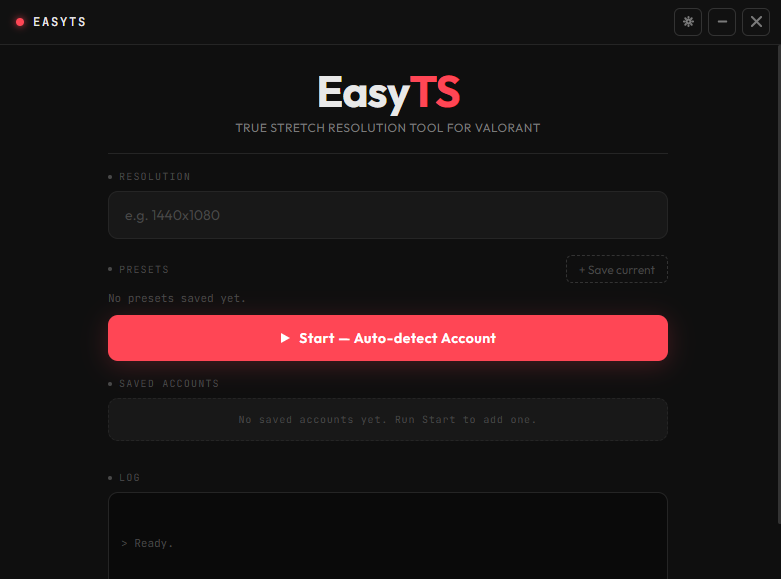 |
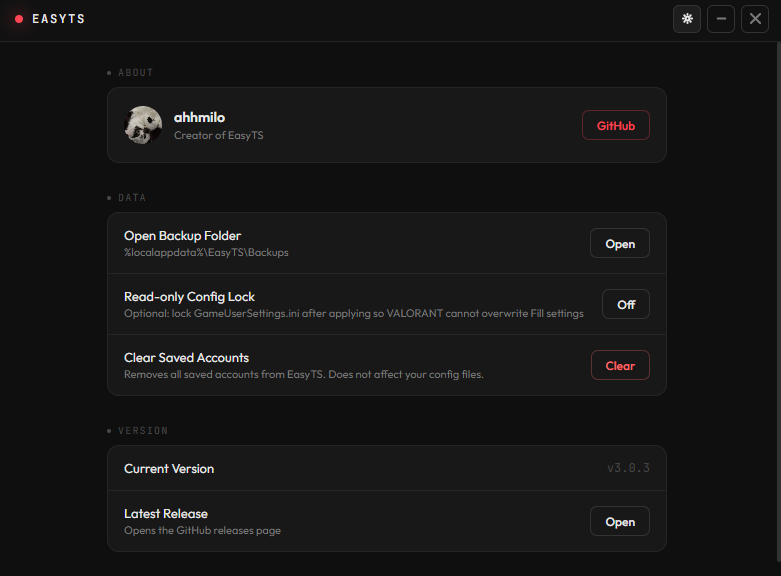 |
| Without True Stretch | With True Stretch |
|---|---|
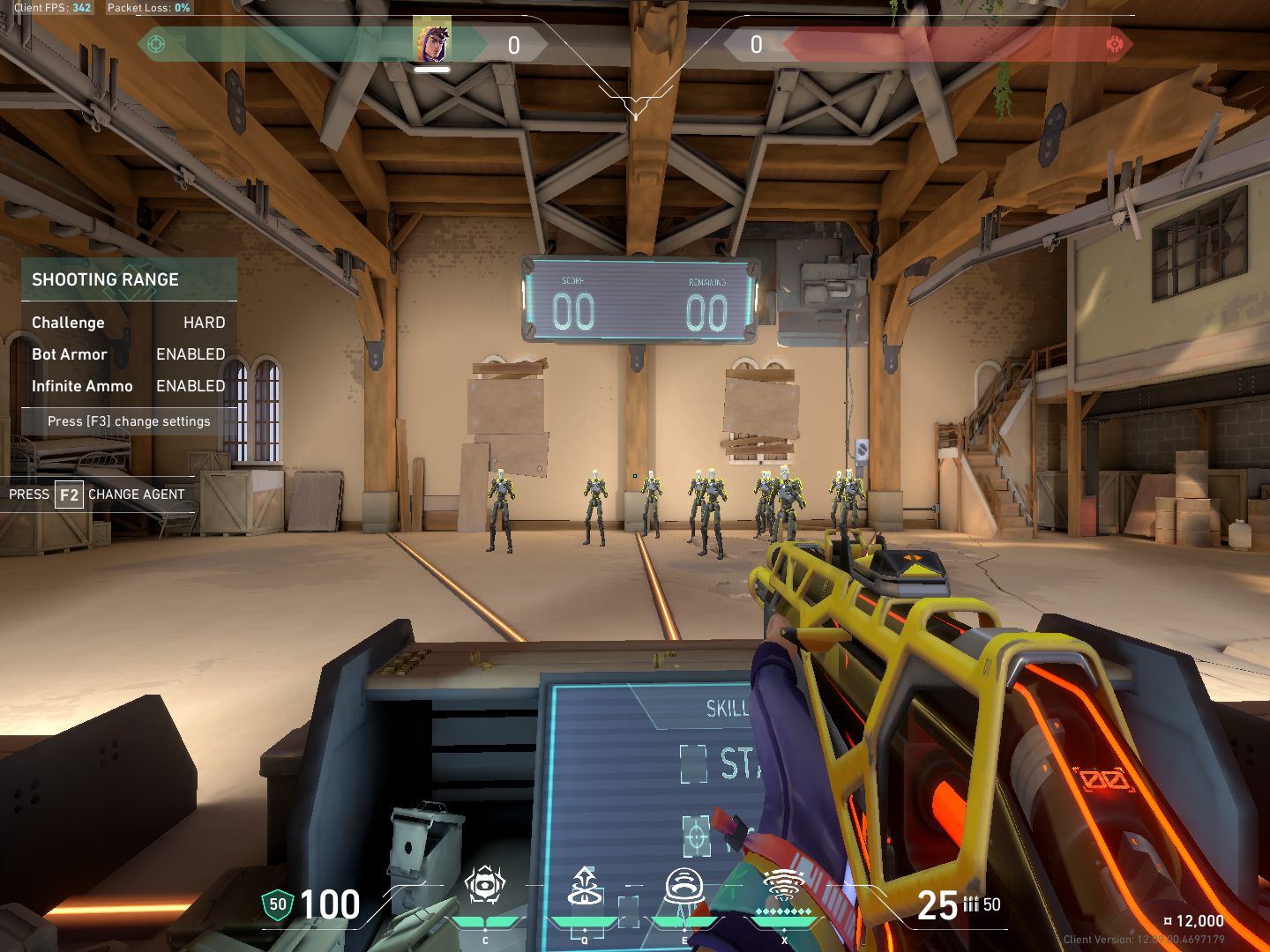 |
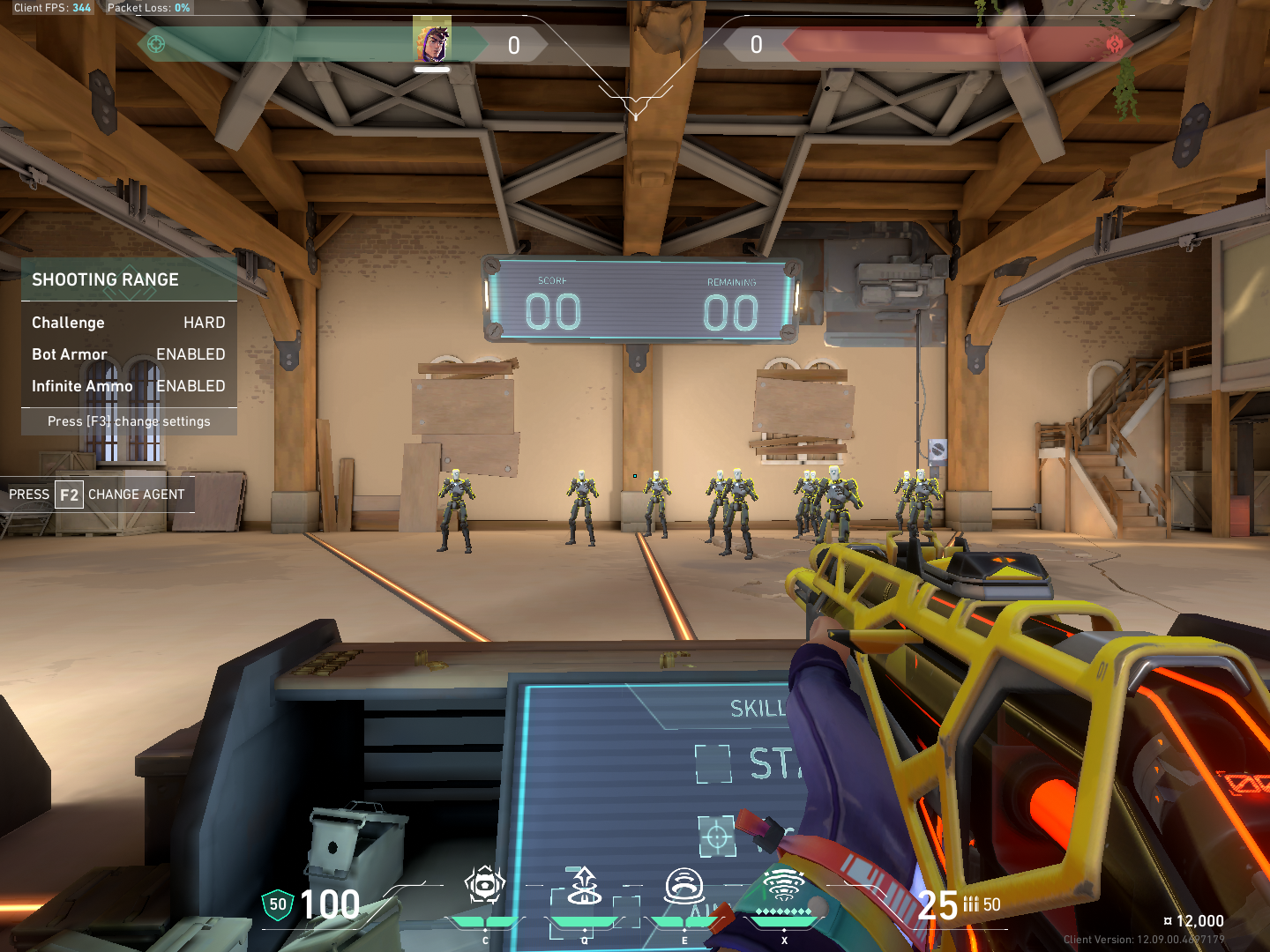 |
Both screenshots use the same resolution (1440x1080). EasyTS applies the stretched/fill behavior automatically.
- Instant VALORANT True Stretch setup
- Custom stretched resolutions such as
1440x1080,1280x1024,1600x1080, and more - Multi-account support with saved account switcher
- Resolution presets for quick re-applying
- Automatic config backup system with one-click restore
- VALORANT running detection before applying changes
- Automatic read-only config handling
- Optional read-only config lock in Settings
- Automatic WebView2 check with guided install if missing
- Automatic update checker on startup
- Lightweight standalone executable
- Black bars fix for some laptop users through registry scaling
- Simple graphical interface, no terminal required
- Download the latest
.exefrom the official GitHub releases page. - Move it somewhere accessible, such as
DesktoporDownloads. - Run it directly.
No installer is required.
- Windows 10 or Windows 11
- Riot Client installed and logged in
- VALORANT installed
- VALORANT completely closed while using EasyTS
- Microsoft WebView2 Runtime
WebView2 is usually pre-installed on Windows 11. Some Windows 10 or stripped-down Windows installs may need it installed manually. EasyTS will prompt you automatically if WebView2 is missing.
- Close VALORANT completely.
- Make sure Riot Client is open and logged into the account you want to use.
- Open EasyTS.
- Enter a resolution using the format
WIDTHxHEIGHT, for example1440x1080. - Optionally save the resolution as a preset.
- Click Start — Auto-detect Account.
- Wait for the success message in the log output.
- Set your Windows display resolution to the same resolution you entered in EasyTS.
- Launch VALORANT.
EasyTS applies the config values automatically, but it does not change your Windows display resolution for you. Your Windows display resolution should match the resolution you applied.
EasyTS includes an optional Read-only Config Lock setting.
When enabled, EasyTS marks GameUserSettings.ini as read-only after applying the stretched resolution. This can help stop VALORANT from changing Fill/Letterbox values back on launch.
When disabled, EasyTS removes the read-only attribute while applying and leaves the config writable afterward.
You can toggle this in Settings → Read-only Config Lock.
After a successful apply, EasyTS saves the account automatically.
Saved accounts appear in the account switcher where you can:
- Re-apply True Stretch with the current resolution in one click
- Restore the latest backup
- View the last applied timestamp and backup date
Type a resolution and click + Save current to save it as a preset chip.
Click a preset chip to instantly fill the resolution input.
| Setting | Value |
|---|---|
ResolutionSizeX / Y |
Custom resolution |
LastConfirmedResolutionSizeX / Y |
Custom resolution |
LastUserConfirmedResolutionSizeX / Y |
Custom resolution |
FullscreenMode |
2 (Windowed) |
LastConfirmedFullscreenMode |
2 |
PreferredFullscreenMode |
2 |
bShouldLetterbox |
False |
bLastConfirmedShouldLetterbox |
False |
If GameUserSettings.ini is marked as read-only, EasyTS removes the read-only attribute automatically before applying changes.
After applying, EasyTS either leaves the config writable or locks it as read-only depending on your Read-only Config Lock setting.
EasyTS automatically creates a backup before modifying any VALORANT configuration file.
Backups are stored in:
%localappdata%\EasyTS\Backups\
Each saved account keeps:
- The latest backup
- The backup creation timestamp
- One-click restore support directly inside the UI
EasyTS only reads and writes VALORANT's local configuration files.
EasyTS does not:
- Inject into VALORANT
- Modify game files
- Interact with Riot servers
- Run during gameplay
- Bypass Vanguard
- Change account data
Because EasyTS is unsigned independent software, Windows Defender or SmartScreen may show a warning. This is common for unsigned applications.
If SmartScreen appears:
More info -> Run anyway
If you are uncomfortable running the tool, do not use it.
The source code is publicly viewable on GitHub for transparency.
VALORANT stores configuration files separately for every Riot account. EasyTS uses Riot Client to detect the currently active account automatically.
EasyTS only edits local configuration values. It does not inject into the game, modify game files, or interact with Riot services during gameplay.
Use at your own discretion.
VALORANT should be completely closed while EasyTS applies changes. This prevents the game from overwriting the config file or keeping settings locked while the tool is trying to edit them.
EasyTS checks if VALORANT is running and warns you before applying changes.
Yes. Set your Windows display resolution to the same stretched resolution you entered in EasyTS before launching VALORANT.
For example, if you apply 1440x1080 in EasyTS, set Windows to 1440x1080 too.
The custom resolution should also be supported by your GPU/monitor.
When enabled, EasyTS marks GameUserSettings.ini as read-only after applying your stretched resolution. This can help stop VALORANT from changing Fill/Letterbox settings back on launch.
When disabled, EasyTS removes read-only while applying and leaves the config writable afterward.
Check the following:
- VALORANT was closed before applying changes
- Riot Client was open and logged into the correct account
- Your Windows display resolution matches the resolution you applied in EasyTS
- Your custom resolution exists and is supported by your monitor/GPU
- Your GPU scaling settings allow stretching
- Your in-game display mode/fill behavior is not overriding the config
- If needed, set VALORANT to Fullscreen with Fill checked, close the game, then run EasyTS again
- If VALORANT keeps switching Fill back to Letterbox, try enabling Read-only Config Lock in Settings
EasyTS attempts to configure the required settings automatically, but some systems may override them on launch.
Some laptops and display setups may still show black bars because of GPU or display scaling behavior.
EasyTS includes a black bars fix option for some laptop users through registry scaling. This may not work on every system.
You may also need to check your NVIDIA Control Panel, AMD Software, Intel Graphics Command Center, or monitor scaling settings.
| Resolution |
|---|
1440x1080 |
1280x1024 |
1600x1080 |
1154x1080 |
1080x1080 |
Delete the executable.
To completely undo changes:
- Use the built-in Restore button in the saved accounts section.
- Or manually reset VALORANT video settings in-game.
- Or delete
GameUserSettings.ini.
VALORANT config location:
%localappdata%\VALORANT\Saved\Config\
Deleting GameUserSettings.ini will reset VALORANT graphics settings.
EasyTS local data is stored in:
%localappdata%\EasyTS\
You can delete that folder if you also want to remove EasyTS presets, saved accounts, settings, and backups.
Open an issue on GitHub or contact me on Discord:
sadkttn67
Copyright (c) 2026 ahhmilo. All rights reserved.
EasyTS is free to download and use from the official GitHub releases page.
The source code is publicly viewable for transparency, but this software is proprietary. You may not copy, modify, redistribute, reupload, repackage, sell, or publish modified versions of the source code or executable without explicit permission from the author.
You may share links to the official EasyTS GitHub repository or official GitHub releases page.