Make the camera more realistic in the first-person view.
Supported versions: 1.18.2 - 1.20.4 Forge, 1.18.2 - 26.2 Fabric, 1.21 - 26.2 NeoForge.
Download the mod from Releases, Modrinth or CurseForge
Snapshots are here
- Bind the camera to a specific part of the body.
- Customize the position and rotation of the camera.
- Render player model in first-person perspective.
- Use 「F6」 to toggle the feature on or off and other hotkeys to adjust the camera.
- Configure these features in the Config Screen (Cloth Config required) and the Model View Screen (0.6+).
- Theoretically, most mod models are supported, but need to be configured manually:
- First, set the key binding for
Open Model View Screen. - Open the model view screen and left click with left Alt held to select the corresponding face of the model, scroll with left Alt held to switch between the different layers of the model.
- By clicking the
Selectingbutton on the left, switch between the three to select theForward Vector,Upward Vector, andTarget Plane. - From the top right button, enter the
Previewsection, where you can see the relative relationship between the camera and the model and make certain adjustments (you can also adjust through key bindings). - Enter a name and save.
If you have difficulty configuring the settings, you can also enableMod Settings > Binding Mode > Legacy Binding Mode
Note: This setting is exclusive to vanilla Minecraft.
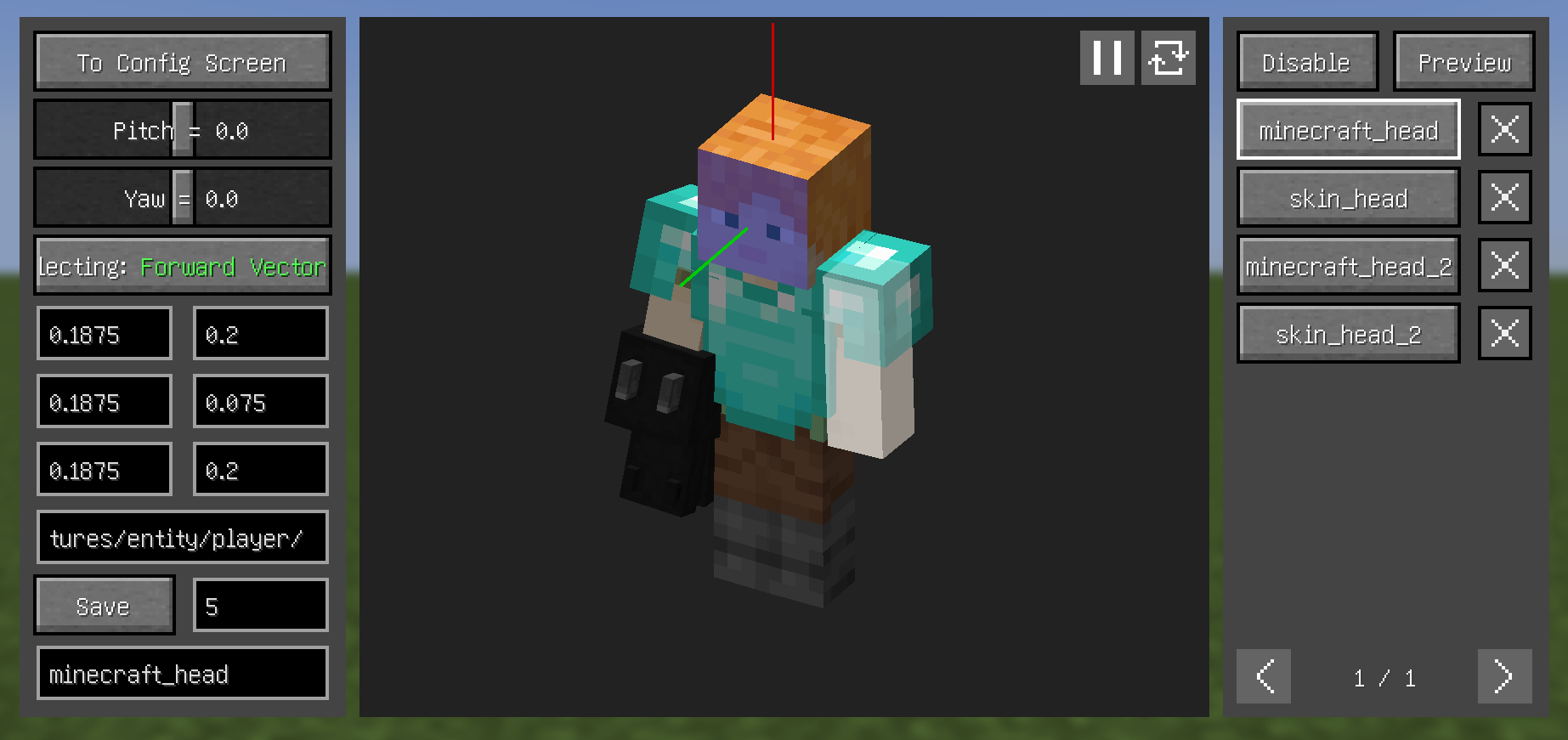
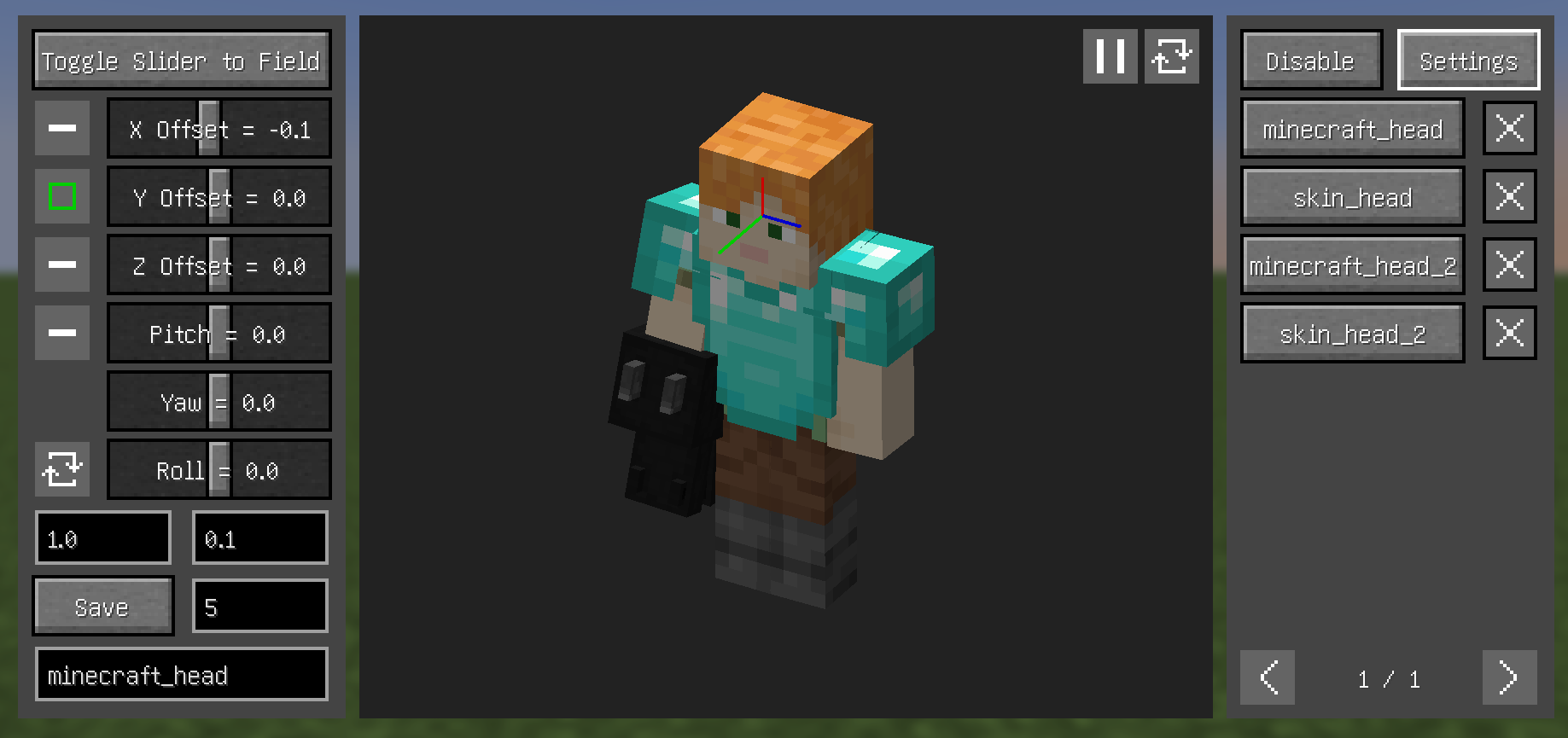
- Configs can have their priority adjusted - higher priority configs appear higher in the right-side list
- In the mod settings, you can manually switch between available configurations by modifying the configuration index. You can also set it to a non-zero value to lock the active configuration
- When the main feature is enabled, hover over the configuration entries. The one annotated with
Current Configis the configuration currently in use - Disable depth in
Previewsection to hide models blocking the view - About
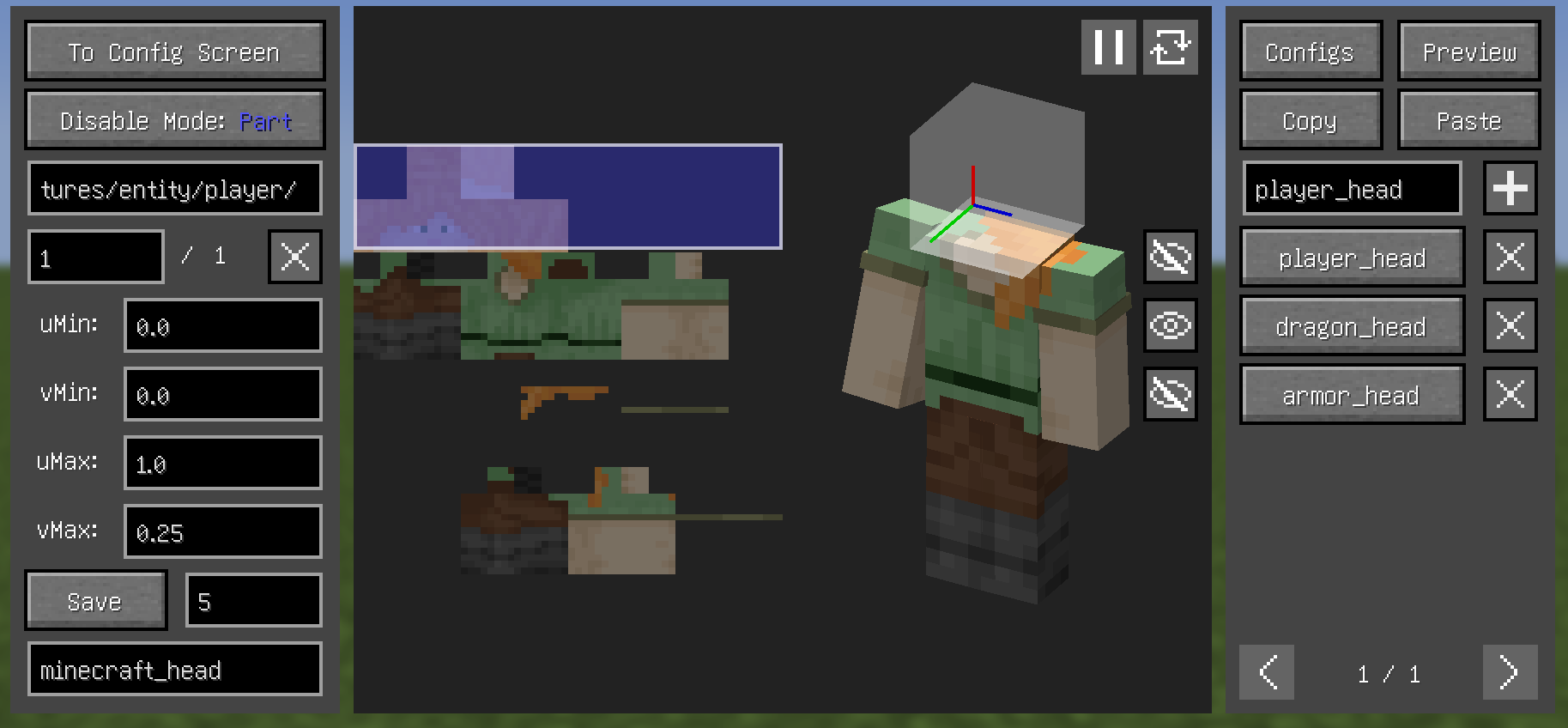
Disablesection:- When texture ID field is empty, use 「Left Alt + Left Click」 to select a texture
- Selection modes:
- Single & Multiple selection: Press 「Left Alt + Left Click」 to select the faces to disable
- Range selection: Press 「Left Alt + Left Click」 to confirm the selection area, and use 「Alt + Scroll Wheel」 to adjust the size of the selection area
- In the left texture view of the player rendering area:
- Press 「Left Click」 to start/end drag selection, press any other key to cancel the selection
- Faces selected via drag selection have the same effect as faces disabled via Multiple selection
- Notably, disabling faces this way is generally more performance-efficient than other methods
- Disable modes:
- In
partmode, selected faces will not be rendered (you can preview the effect by toggling off the visibility of the disable configuration on the right pane) - In
Allmode, entire texture's model won't render (blue box containing the texture in left panel indicates this)
- In
- Fabric:
- Both:
- (Optional but recommended) Cloth Config API
- A part of the model (e.g. hair) is always in the way, how to make it invisible?
- Increasing this value may help, or use
Disablesection

- Increasing this value may help, or use
- What key to press can open Model View Screen?
- Set the key binding by yourself
- Why can't i open the Config Screen?
- Please downlowd Cloth Config API
- Why does it show binding failed when use YSM models?
- Snapshot 0.6.15 "try" to fix problems, but it didn't fully fix completely
- When your model rotates to a specific angle, the position you bound may disappear due to YSM's
face culling feature, resulting in binding failure - You can alleviate this problem by increasing the
Bind Result Retention Frames
- Why does the disabled texture appear when i downloaded Better Combat and attack?
- Open settings of Better Combat and change Auto to False in First person player animation
-
Incompatible:
- OptiFine
- Armourer's Workshop (Mod version 0.6+)
- Armors based on GeckoLib
- Customizable Player Models
- Epic Fight (Mod version 0.6-)
- Timeless and Classics Zero,version 1.1.4+
-
Compatible:
- most camera mods
- most player model mods
- Armourer's Workshop (Mod version 0.6-)
- Epic Fight (Mod version 0.6+)
- First-person Model
- Not Enough Animations
- ParCool!
- Pehkui
- Player Animation Lib
- Timeless and Classics Zero,version 1.0.3-
- Yes Steve Model (Not stably compatible)
- Superb Warfare
-
Model Mod Compatibility Requirements with
Real Camera(Based on Official Mappings): -
Vertex Data Acquisition
Real Cameraobtains vertex data by overriding theMultiBufferSource multiBufferSourceparameter of the public methodEntityRenderDispatcher.render- The call timing is before the
Camera.setupphase in theGameRenderer.renderLevelmethod - Therefore, the mod needs to meet the following technical conditions:
- Use only the provided
multiBufferSourceparameter when renderingMinecraft.getCameraEntity, and avoid alternative approaches for obtaining or creatingMultiBufferSourceinstances - The overall rendering behavior remains unaffected when rendering the player model at the adjusted timing
- Ensure all vertex data ultimately passes through
VertexConsumergotten byMultiBufferSource.getBuffer
- Use only the provided
-
Render Times Compatibility
Real CamerarendersMinecraft.getCameraEntityby calling the public methodEntityRenderDispatcher.render- This is the second call to the
EntityRenderDispatcher.rendermethod in a frame (the first call is to solve the camera parameters). - Therefore, the mod needs to meet the condition that the overall rendering behavior remains unaffected when rendering the player model multiple times in the same frame